
Sleep and wake up
Navigation: Settings → Power → Sleep Settings
Sleep puts the device into a low-power state when no one is using it, and wakes it up automatically when it needs to change the image. On battery-powered models, this is the most important feature for extending battery life.
Sleep is off by default
From the factory, "Enable Sleep" is off. When you want to save power, turn it on manually on the Sleep Settings page.
What the device does while asleep
| Item | State during sleep |
|---|---|
| Processor | Paused (system suspended); uses almost no power |
| Panel image | Keeps the current image. A cholesteric LCD holds its image without power, so it looks the same as when the device is awake |
| Wi-Fi hotspot | Off. Phones are disconnected and can't find the hotspot |
| Management interface | Unavailable |
| Status LED | Off (to tell "asleep" apart from "frozen") |
| Light (optional) | Stays as it was before sleep. If the light was on when the device went to sleep, it stays on. See Light schedule and light |
| Schedule | The device wakes up automatically before the next schedule to run it |
The startup screen is cleared first
If the panel is currently showing the QR code startup screen, the device clears the screen to white before sleeping. Because the hotspot is off during sleep, leaving the QR code up would make people think they can still scan it to connect. Regular images stay on screen and are not cleared.
Settings
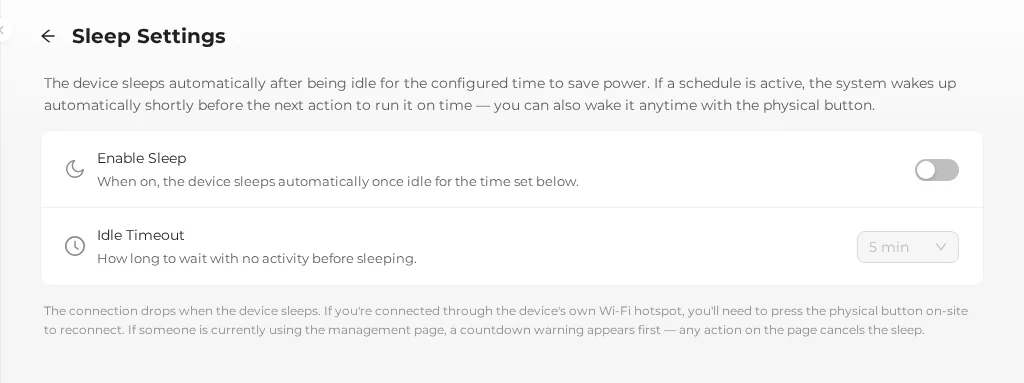
| Setting | Default | Options | Description |
|---|---|---|---|
| Enable Sleep | Off | On / Off | When on, the device sleeps automatically after being idle for the time below |
| Idle Timeout | 5 minutes | 3 minutes, 5 minutes, 10 minutes | How long without any activity before the device sleeps. You can't change this when "Enable Sleep" is off |
- Changing the switch takes effect immediately and shows "Sleep enabled" or "Sleep disabled".
- Changing the time takes effect immediately and shows "Idle timeout updated".
- If loading fails, you see "Failed to load sleep settings"; if saving fails, you see "Failed to save".
When the device goes to sleep
There is only one trigger for sleep: the idle time runs out. There's no "sleep now" button, and no scheduled sleep such as "sleep at a certain time every day".
The device checks every 10 seconds and goes to sleep only when all of these conditions are met:
- "Enable Sleep" is on.
- The idle time has reached the threshold (see below).
- The panel is not currently refreshing.
- The next schedule is more than 5 seconds away.
- If someone has the management interface open, the countdown warning was not canceled.
- If any schedule is enabled, the hardware clock (RTC) can set an automatic wake-up.
If any condition isn't met, the device doesn't sleep and checks again 10 seconds later.
Idle threshold: it matters a lot whether someone has the management interface open
| Situation | Actual idle threshold |
|---|---|
| No one has the management interface open | The time you set (3 / 5 / 10 minutes) |
| Someone has the management interface open (any page) | At least 15 minutes, plus a 60-second countdown warning |
This keeps the device from suddenly going to sleep and dropping the connection while someone is looking at the management page without clicking anything. So when you test sleep, close all browser tabs (or take your phone off the hotspot); only then will the device sleep after the 3 / 5 / 10 minutes you set.
What counts as "activity"
These actions reset the idle time and start counting again:
- Any action in the management interface (opening a page, uploading, changing settings, displaying an image on the panel…)
- Opening the management interface (a browser connecting to the device)
- Changing the image, clearing the screen, or showing the QR code with the physical buttons
- Pressing a button on the presenter remote
- Pressing "Keep Awake" in the sleep countdown window
- Waking the device from sleep with a button
These don't count as activity and don't prevent sleep:
- Automatic image changes by a schedule
- The device being woken up by a scheduled time
- The management interface updating battery, LED, and device status, and the time on the "Time Settings" page, in the background
Countdown warning before sleep
When someone has the management interface open and the idle threshold is reached, a warning window pops up on every open page:
The device is about to sleep No activity detected. The device will sleep in 60 seconds. Sleeping ends this connection, and the device has to be woken with its physical button. Choose Keep Awake if you are still working.
- Press Keep Awake: cancels this sleep and restarts the idle time.
- Any action in the management interface during the countdown also cancels this sleep.
- You can't close this window by clicking outside it or pressing ESC.
- If all pages are closed during the countdown, the device goes to sleep right away without waiting for the countdown to finish.
When no one has the management interface open, there's no warning at all; the device goes to sleep as soon as the idle time runs out.
How to wake up the device
| Wake-up method | Description |
|---|---|
| Scheduled time arrives | The device wakes up automatically about 3 seconds before the trigger time of the nearest enabled schedule (schedule or light schedule) |
| Press a physical button | Press a physical button on the device at any time to wake it up |
- If there are no enabled schedules, the only way to wake the device is to press a physical button.
- Disabled schedules don't wake up the device.
- The network (a phone connecting, scanning the QR code) can't wake up the device, because the hotspot is off during sleep.
After waking up
When woken up by a scheduled time:
- The system time is corrected from the hardware clock (RTC).
- Due schedules run (changing the image, or turning the light on/off).
- The status LED returns to standby.
- After the image changes, if no one connects, the device goes back to sleep within about 10 seconds and waits for the next schedule.
When woken up by a button:
- Same as above: the time is corrected and missed schedules run.
- The idle time starts counting from this point, so you have enough time to connect to the management interface.
Reconnecting after wake-up
- When the device wakes up, the Wi-Fi hotspot restarts; wait a few seconds before it shows up in the list.
- Your phone usually reconnects to the remembered hotspot automatically; if not, select the device's Wi-Fi manually.
- Go back to the management interface. If "Lost connection to the device" appears at the top of the page, press Reconnect or reload the page.
How missed schedules are handled
| Schedule type | After waking from sleep |
|---|---|
| Schedule | An image change that is already overdue is made up once right away (even if several were missed, only one is made up) |
| Light schedule | Not made up. Instead, the device decides from the "current time" whether the light should be on or off, and sets it to the correct state directly |
When sleep is blocked
| Situation | Description |
|---|---|
| Sleep switch is off | Off is the factory default |
| Someone has the management interface open | The threshold becomes at least 15 minutes + a 60-second countdown |
| The panel is refreshing | The device checks again after the refresh finishes |
| The next schedule is within 5 seconds | Not worth sleeping; the device just waits for the schedule |
| A schedule is enabled, but the hardware clock (RTC) can't be found | The system first tries to repair it; if that fails, the device doesn't sleep and shows "Real-time clock (RTC) fault" at the top of the page, so that schedules aren't left unable to wake it after sleep |
| Very frequent schedules (for example every minute) | Each time the device wakes up and changes the image, the next schedule arrives before idle time builds up again, so it actually sleeps only briefly |
To find out why the device didn't sleep, search the system logs for 取消休眠 (sleep canceled); the log records why sleep was blocked.
Sleep vs. shutdown vs. clearing the screen
| Sleep | Shutdown | Clear the screen | |
|---|---|---|---|
| Panel image | Keeps the current image (the QR code screen is cleared first) | Clears the screen, then shuts down | Shows a single solid color (black or white) |
| Power use | Very low | None | Same as standby |
| How to resume | Woken up automatically by a schedule, or press a physical button | Restore power / turn on on-site | Display the next image |
| Schedule | Runs as usual | Doesn't run | Runs as usual |
| Best for | Everyday power saving | Long-term storage, transport | Temporarily blanking the screen |
Recommended settings
| Scenario | Recommendation |
|---|---|
| Battery-powered models | Turn on sleep and choose 3 or 5 minutes; set schedules to 30 minutes or longer |
| Plugged in, need to connect from a phone at any time | You can turn sleep off |
| Placed in a busy area, managed only occasionally | To wake it up immediately, press a physical button; or wait until an enabled schedule wakes it up, then connect within range of the hotspot |
| Schedule changes the image every minute | Sleep still saves some power, but the device sleeps only briefly. Lengthen the schedule interval to save more power. |
After sleep, you can only reconnect on-site
If you manage the device through its own hotspot, you can't reconnect remotely once it's asleep; you have to press a physical button on-site to wake it up. Where remote management matters more, consider turning sleep off or setting a longer idle time.
Related system behavior
- Before sleeping, if any schedule is enabled, the device first checks that the hardware clock (RTC) can set an automatic wake-up. If the RTC can't be found, the system first tries to repair it; if that fails, the device doesn't go to sleep and shows a red "Real-time clock (RTC) fault" warning at the top of the page, so that schedules are never left unable to wake it. When no schedule is enabled (waking only by button), the device sleeps as usual. See Hardware warnings.
- The system clock pauses during sleep and is corrected from the hardware clock after wake-up, so schedules still run at the correct time.
Related sections: Power control and storage, Battery, Schedules, Troubleshooting: power, sleep, and battery