
Change frequency settings in detail
The "Change Frequency" of a schedule and the "Trigger Frequency" of a light schedule are set up the same way. This page explains each way to set it, the rules behind it, and examples for common needs.
Four ways to set it
| Method | Best for | Where |
|---|---|---|
| Fixed interval | Changing "every N minutes / every N hours" | Choose "Fixed interval" with the toggle above the frequency field |
| Specific time | "At a certain time every day", "on certain days of the week", "on a certain day of the month", and so on | Choose "Specific time" with the toggle above the frequency field |
| Common Presets | Applying common settings with one tap | The "Common Presets" tags at the bottom of the form |
| Advanced cron | If you know cron syntax and need a special combination | "Advanced: Manual cron expression" at the bottom right of the form |
Whichever method you use, the setting is stored on the device in the same format (a cron expression). A plain-language description appears live below the frequency field, for example "Every 10 min". Use this line to check that the setting does what you expect.
Fixed interval
It appears as "Every [number] [minutes/hours]", where both are drop-downs.
| Unit | Numbers you can choose |
|---|---|
| minutes | 1, 2, 3, 4, 5, 6, 10, 12, 15, 20, 30 |
| hours | 1, 2, 3, 4, 6, 8, 12 |
Why only these numbers
A fixed interval is aligned to the clock:
- Every N minutes: starts at minute 0 of each hour, runs every N minutes, and starts over at the next full hour. Example: every 15 minutes → :00, :15, :30, :45 of each hour.
- Every N hours: starts at 0:00 each day, runs on the hour every N hours, and starts over at 0:00 the next day. Example: every 3 hours → 0:00, 3:00, 6:00, 9:00, 12:00, 15:00, 18:00, 21:00.
Because the count starts over every hour (60 minutes) and every day (24 hours), only numbers that divide 60 or 24 evenly keep the interval always the same length. For example, "every 7 minutes" would reach the next hour's :00 only 4 minutes after :56, so the interval would vary, which is why it isn't offered.
Need "every 45 minutes" or "every 90 minutes"?
The current settings don't support intervals like these. A fixed interval can only use numbers that divide 60 minutes or 24 hours evenly.
Other fixed interval behavior
- New schedules default to "Fixed interval: Every 10 min".
- When you switch units, if the current number isn't valid for the new unit (for example switching "10 minutes" to hours), it changes to 1 automatically.
- When you switch from "Specific time" back to "Fixed interval", if the existing setting isn't in interval format, it resets to every 10 minutes.
- When you edit an existing schedule, if its setting happens to be in fixed interval format, it opens in the "Fixed interval" view; otherwise it opens in "Specific time".
Specific time
Build a time rule with drop-downs. The first drop-down chooses the period ("every" what), and the fields after it change accordingly:
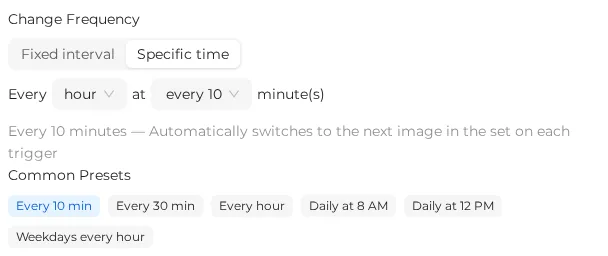
| Period | What you can set | Example |
|---|---|---|
| Every minute | No other fields | Once a minute |
| Every hour | Which minute | Minute 30 of every hour |
| Every day | Hour, minute | 8:00 every day |
| Every week | Day of week, hour, minute | 9:00 every Monday, Wednesday, and Friday |
| Every month | Day of month, hour, minute | 0:00 on the 1st of every month |
| Every year | Month, day, hour, minute | 0:00 on January 1 every year |
Most fields allow multiple selections. For example, selecting 8, 12, and 18 for the hour fires once each at 8:00, 12:00, and 18:00 every day.
If the setting is invalid, you'll see "Please fix the cron expression" when you save.
Common Presets
Tap a preset to apply it. The preset currently in use turns blue.
Schedules:
| Preset | Equivalent to |
|---|---|
| Every 10 min | */10 * * * * |
| Every 30 min | */30 * * * * |
| Every hour | 0 * * * * |
| Daily at 8 AM | 0 8 * * * |
| Daily at 12 PM | 0 12 * * * |
| Weekdays every hour | 0 * * * 1-5 |
Light schedules:
| Preset | Equivalent to |
|---|---|
| Daily at 7 AM | 0 7 * * * |
| Daily at 8 PM | 0 20 * * * |
| Daily at 10 PM | 0 22 * * * |
| Weekdays at 7 AM | 0 7 * * 1-5 |
Advanced: enter a cron expression manually
Tap the gray "Advanced: Manual cron expression" at the bottom right of the form, and the field turns into a text box where you can type a cron expression directly. "Back to selection mode" on the right returns you to the graphical settings.
Notes
- The text box supports a single-line cron expression only; each schedule can have only one.
- Don't add line breaks, and don't enter several expressions or comments in the same field. Otherwise the schedule may fail to save or may not run properly.
Advanced mode isn't checked as you type
The text box doesn't check the format as you type. A format error shows up as "Creation failed" or "Update failed" only when you tap "Create" or "Save". After typing, first check that the plain-language description below the field is correct; if the description just shows the raw text you typed, the system can't understand the expression.
Cron expression format
It has 5 fields separated by spaces:
┌───────── minute (0–59)
│ ┌─────── hour (0–23)
│ │ ┌───── day of month (1–31)
│ │ │ ┌─── month (1–12)
│ │ │ │ ┌─ day of week (0–7, where 0 and 7 are Sunday; English abbreviations sun, mon…sat also work)
│ │ │ │ │
*/10 * * * *| Symbol | Meaning | Example |
|---|---|---|
* | Every | * in the hour field = every hour |
, | List | 8,12,18 in the hour field = 8:00, 12:00, and 18:00 |
- | Range | 9-17 in the hour field = 9:00 through 17:00 |
/ | Interval | */15 in the minute field = every 15 minutes |
- The smallest unit is the minute; you can't set seconds.
- Anything other than 5 fields, values out of range,
*/0, and similar are rejected. - A date that never occurs (for example February 31) doesn't cause an error, but the schedule never fires, and the table shows "Paused".
Common examples
| Need | Cron expression |
|---|---|
| Every 5 minutes | */5 * * * * |
| Every 30 minutes from 9:00 to 17:30 every day | */30 9-17 * * * |
| 8:00, 12:00, and 18:00 every day | 0 8,12,18 * * * |
| 9:00, 10:30, 12:00, and 13:30 every day (irregular times) | Needs two schedules: 0 9,12 * * * and 30 10,13 * * * |
| Weekdays at 8:00 | 0 8 * * mon-fri |
| Every hour on weekends | 0 * * * sat,sun |
| 0:00 on the 1st of every month | 0 0 1 * * |
| 9:00 on the first day of each quarter | 0 9 1 1,4,7,10 * |
Known issue with the day-of-week field
Fixed in 1.11.0: numeric days of the week were off by one day
In version 1.10.0 and earlier, if the day-of-week field of a cron expression used numbers (0–6), the schedule actually fired one day later (for example, 0 7 * * 1-5 actually fired Tuesday to Saturday). The "Weekdays every hour" and "Weekdays at 7 AM" presets in "Common Presets" were affected too.
From 1.11.0, numbers in the day-of-week field follow standard cron numbering: 0 and 7 are Sunday, 1 is Monday … 6 is Saturday. When you update to 1.11.0, existing schedules created with numeric days of the week are corrected automatically, and disabled schedules stay disabled. You don't need to set them up again.
How to choose a frequency
| Situation | Recommendation |
|---|---|
| Typical shop or hallway signage | Change images every 10–30 minutes |
| Menus and price lists (only need changing during business hours) | Specify business hours, for example */30 10-21 * * * |
| Different content at fixed times (breakfast/lunch) | One schedule per time period, each with its own image set, with times staggered |
| Battery power | The more often images change, the more power is used. Change every 30 minutes or more, and combine with sleep |
A cholesteric LCD doesn't need constant refreshing to keep its image (see How cholesteric LCDs work). The "change frequency" only decides how often the content changes; a low frequency won't make the image disappear.
Related sections: Schedules, Light schedules and the light, Time, time zone, and time sync