
Management interface tour
Screen layout
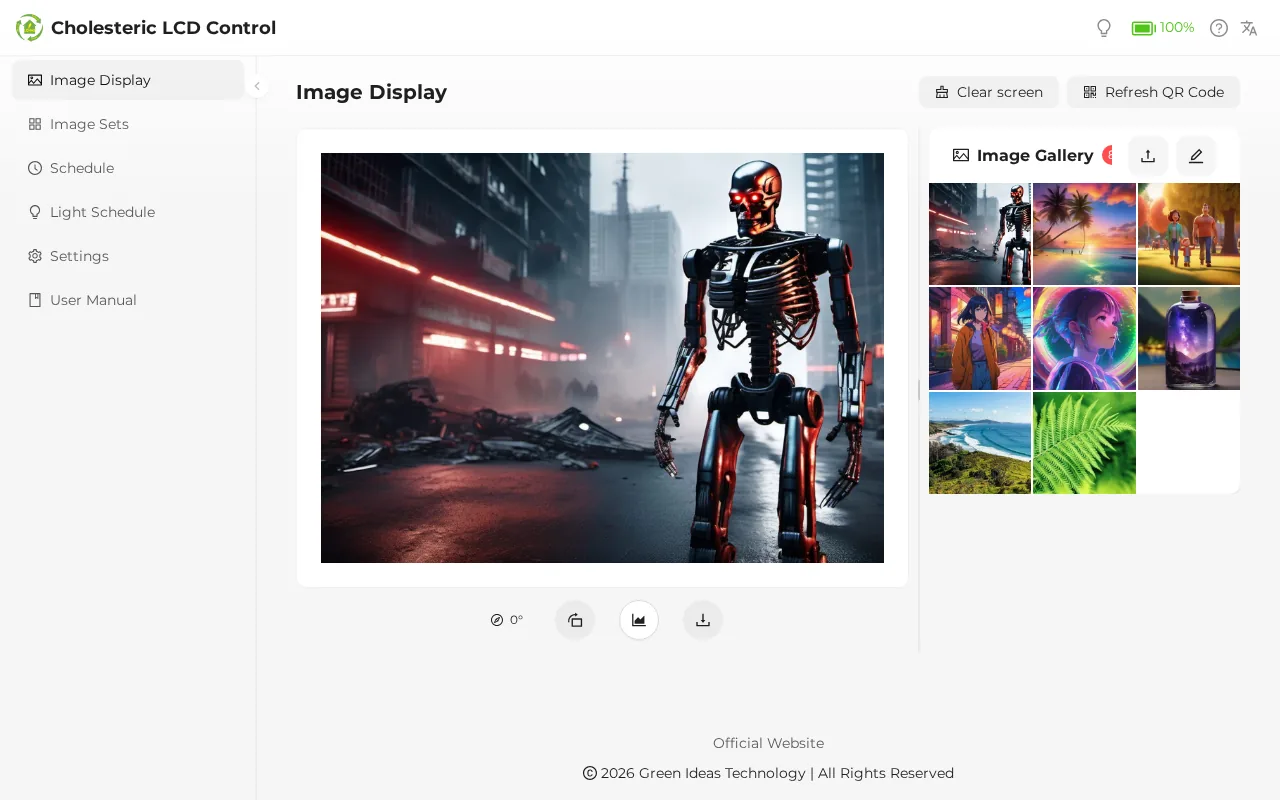
| Location | Contents |
|---|---|
| Left menu | Main features (on a phone, tap the three-line icon in the upper left to open it) |
| Upper right | Light bulb (models with a light), battery (battery models), "?" User Guide, language switch |
| Top of the page | Notices appear when needed: connection lost (yellow), hardware fault (red), sleep countdown (dialog) |
| Footer | Company name and a link to the official website |
Left menu
| Menu | Purpose |
|---|---|
| Image Display | Image gallery, upload, preview, display an image on the panel, clear the screen, refresh the QR code (the home page when you open the management interface) |
| Image Sets | Create and manage image sets |
| Schedule | Create and manage automatic image-change schedules |
| Light Schedule | Turn the light on and off automatically (models with a light only) |
| Settings | All device settings (see below) |
| User Manual | A short built-in guide on the device |
Settings page
The "Settings" page groups all settings into four groups. On a computer they're shown as cards with a one-line description; on a phone they're shown as a list. Click an item to open its subpage; the back arrow in the upper left of the subpage returns to Settings.
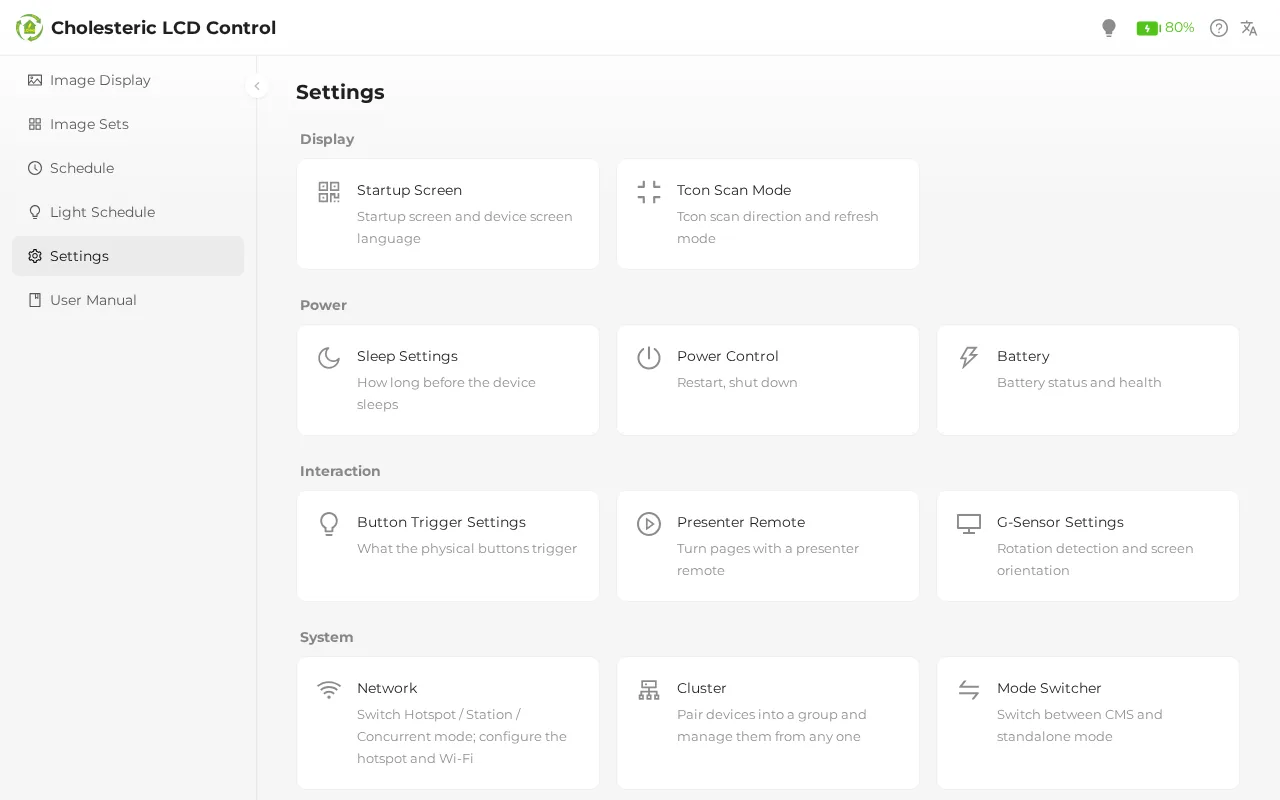
| Group | Item | Description |
|---|---|---|
| Display | Startup Screen | Startup QR code screen and screen language |
| Tcon Scan Mode | Scan direction, refresh mode, edge mask | |
| Power | Sleep Settings | How long before the device sleeps |
| Power Control | Restart, shut down | |
| Battery Info | Battery status (battery models) | |
| Interaction | Button Trigger Settings | Physical button gestures |
| Presenter Remote | Turning pages with a presenter remote, how images change | |
| G-Sensor Settings | Auto-rotate and fixed orientation | |
| System | Network | Switch between hotspot / Wi-Fi / concurrent mode, set up the hotspot and Wi-Fi |
| Cluster | Devices discovering each other, network check | |
| CMS Connection | CMS server, connection test, control (devices with the CMS component) | |
| Mode Switcher | Switch to CMS mode (devices with a CMS module) | |
| Time Settings | Time, time zone, NTP | |
| System Logs | View logs, download the full logs | |
| Tcon Firmware | Panel driver board firmware | |
| Export / Import | Save settings, photos, image sets and schedules to one file, or restore them from a file to this device | |
| Software Update | Release notes, OTA update, factory reset | |
| Device info | Versions, specifications, storage, live load |
Features a model doesn't have don't appear on the Settings page. See Models and specifications.
Change the management interface language
Click the language icon in the upper right and choose 繁體中文, English, or 日本語.
- The first time you open it, the language is chosen automatically from your browser's language.
- Your choice is saved in the browser on this phone / computer. Each person sets it separately, without affecting anyone else.
- The management interface language is separate from the language of the startup screen on the device screen; change the latter in Startup screen settings.
User Guide
The ? (User Guide) in the upper right takes you to the Image Display page and walks you through the main areas step by step.
Using it on a phone
- Tap the three-line icon in the upper left to open the menu; tap outside the menu to close it.
- On the Image Display page, the image gallery is below the preview frame; scroll down. Tapping a thumbnail scrolls back to the top automatically to show the preview.
- The editing toolbar (rotate, fit mode, download) is collapsed by default; tap the gray bar under the preview frame to expand it.
- To drag to reorder (image sets, schedule cards), press and hold the drag handle before dragging; swiping on the list just scrolls the page.
- Longer windows (for example PDF collage) need scrolling down to see the next step and confirm buttons.
Several people at once
When several people have the management interface open at the same time, everyone's screen syncs in real time: uploads, deletions, settings changes, panel refresh status, and so on. The panel can handle only one refresh at a time. If two people display an image at the same time, the one who sent it later gets "Send failed, device may be busy".
Common on-screen messages
| Message | Meaning |
|---|---|
| Lost connection to the device | The connection between your phone and the device dropped. See Connecting to the device |
| Orientation sensor (G-sensor) fault / Real-time clock (RTC) fault | The hardware can't be read. See Hardware warnings |
| Cannot identify the panel; refreshing is paused / Panel model not supported; refreshing is paused / Machine data does not match the panel | There is a problem with the panel model or the model data. See Hardware warnings |
| The device is about to sleep | Idle countdown; press "Keep Awake" to cancel. See Sleep and wake up |
| Response status:number | The device returned an error code. See Message reference |
| Sorry, the page you visited does not exist. | Wrong URL; press "Back Home" |
For the full list of messages, see Message reference.