
Physical buttons and gestures
Navigation: Settings → Interaction → Button Trigger Settings
The device has two physical buttons: the Previous button and the Next button. Besides switching images, you can use gestures to clear the screen, show the QR code, wake up the device, and do a factory reset. You can also connect a presenter remote to change pages.
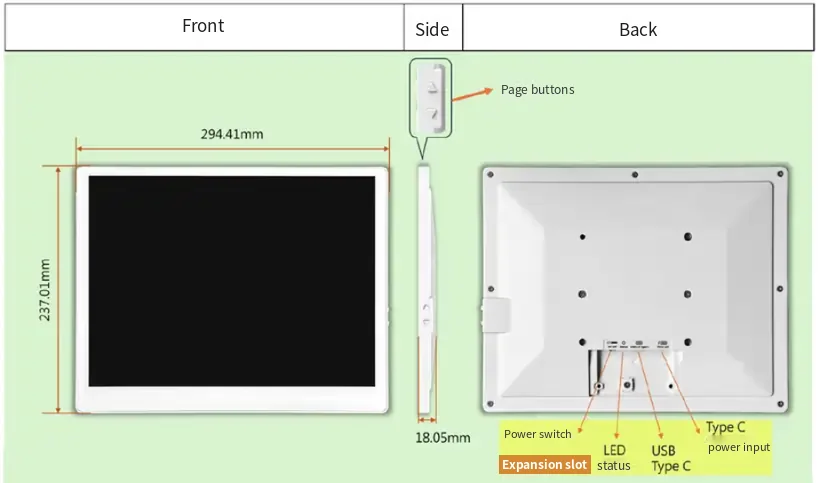
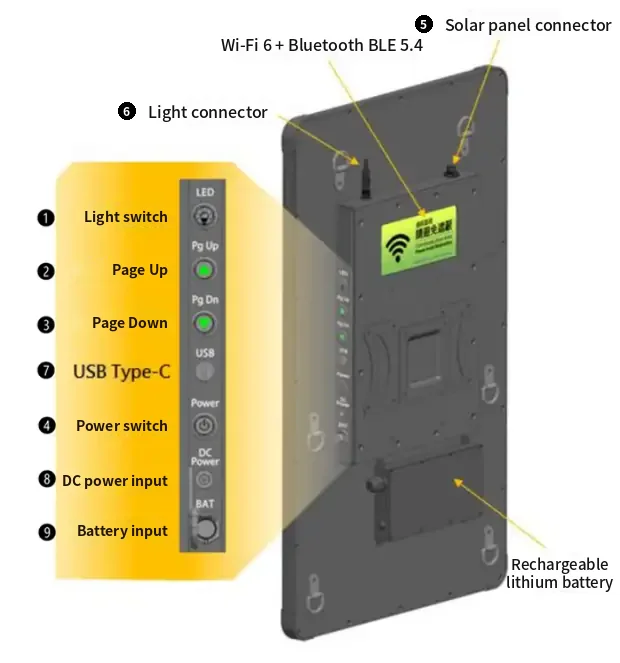
Button location
13.3-inch: The two buttons are on the side of the device, where the "Side" view in the figure below is labeled "page buttons". The upper one is the Previous button and the lower one is the Next button.
27.6-inch, 32-inch: The buttons are on the control panel on the side of the device. "Pg Up" is the Previous button and "Pg Dn" is the Next button. The light switch, power switch, and connectors on the panel are not part of the button functions on this page.
Button functions at a glance
| Function | Default action | Can be changed |
|---|---|---|
| Go to the next image | Press the "Next button" once | No |
| Go to the previous image | Press the "Previous button" once | No |
| Clear the screen | Double-press either button (the gap must be longer than 0.3 seconds) | Yes |
| Show the QR code startup screen | Long-press either button for 1.5 seconds | Yes |
| Wake up a sleeping device | Press either button | No |
| Factory reset | Hold either button for 40 seconds | No |
The long press and the factory reset are the same gesture
"Long-press for 1.5 seconds to show the QR code" and "hold for 40 seconds to factory reset" are both holding one button down; the only difference is how long. After you press, this happens over time:
| Time held | What happens |
|---|---|
| 1.5 seconds | The QR code startup screen starts refreshing (it triggers without releasing) |
| 3 seconds | The status LED starts blinking fast (red on full-color LEDs): the factory reset countdown has started |
| 40 seconds | Factory reset: all images, schedules and settings are erased |
To bring up the QR code, release as soon as the screen starts refreshing
Releasing at any time within 40 seconds cancels the factory reset; a QR code refresh that has already started is not affected. If the LED starts blinking fast, the countdown has started: release immediately.
- If "Long Press Duration" is set to 3 seconds or more, you will see the factory reset's fast blinking first and the QR code refresh after it. This is normal; just release.
- Pressing the other button as well cancels the factory reset countdown.
- For the full description of the factory reset, see Factory reset.
Switching images
- Press the "Next button" or "Previous button" once to switch; the image after the last one is the first one.
- After you press, the device waits for the "Double-tap Max Interval" (default 0.3 seconds) to make sure you're not double-pressing (the gap must be longer than 0.3 seconds) before it starts switching.
- If two presses are too close together (within 0.3 seconds), the second one is ignored to prevent accidental presses.
- Switching refreshes the panel (this depends on the model and refresh mode, for example about 6 seconds on 13.3-inch, about 16 seconds on 27.6-inch, about 20 seconds on 32-inch). If you press again while the previous image is still refreshing, what happens depends on "When changing pages" on the presenter remote settings page (default "Switch immediately"); see Changing pages during a refresh.
- On models with two single-color LEDs, only the LED on the side you pressed breathes when switching, so you can tell which button you pressed. See Status LEDs.
Button switching range
| Setting | Switching range |
|---|---|
| Bound Image Set: "None (whole gallery)" (default) | Switches through all images in image gallery order |
| Bound to an image set | Switches in order only within that image set |
- If the bound image set is deleted or empty, it automatically goes back to switching through the whole image gallery.
- If the image gallery has no images at all, the buttons don't display anything, and the status LED blinks quickly 3 times.
- You can also set the same thing with the target icon in the Image sets list.
Button switching and schedules
After you switch with the buttons, schedules keep running as usual; at the next scheduled time, the scheduled image is displayed.
Changing pages during a refresh
"What to do when you press next/previous on the presenter or the physical buttons while the previous page is still refreshing. "Switch immediately" stops the current refresh and starts the new page (a small part of the new image may remain on screen); "Wait" lets the current refresh finish, and rapid presses keep only the last page."
| "When changing pages" | Pressing again while the previous image is still refreshing |
|---|---|
| Switch immediately (default) | Stops the current refresh right away and refreshes the new image instead. A small part of the new image may remain on screen at first, then the new image replaces it |
| Wait for it to finish | Waits for the current refresh to finish before changing. If you press several times in a row, only the last image is kept |
- This setting is on the "Presenter Remote" settings page and is shared by the physical buttons and the presenter remote.
- When the panel is refreshing something other than an image change (for example refreshing the QR code or clearing the screen), both settings wait for it to finish before changing; it isn't stopped.
- Only page changes from the physical buttons and the presenter remote are handled this way. Schedules, displaying an image from the management interface, and the clear-screen and QR code gestures are still rejected while the panel is busy.
Customizable gestures
Clear Screen Trigger
"Set the button gesture that triggers reset (clear the screen)"
Refresh QR Code Trigger
"Set the button gesture that refreshes the QR code startup screen"
Both have these two fields:
| Field | Options | Description |
|---|---|---|
| Trigger Mode | Both buttons — short press | Press both buttons together and release within 1 second |
| Both buttons — long press | Hold both buttons together for 1 second | |
| Double-tap same button | Press the same button twice; the gap must be longer than the "Double-tap Max Interval" setting | |
| Single button long press | Hold one button for the "Long Press Duration" | |
| Applies to Button | Either button / Prev button / Next button | Can't be selected when the trigger mode is a two-button gesture |
| Gesture | Default |
|---|---|
| Clear the screen | Double-tap same button (the gap must be longer than 0.3 seconds), either button |
| Refresh QR Code | Single button long press, either button |
Gesture Timing Thresholds
"Adjust the timing that qualifies a "long press" or "double tap""
| Setting | Default | Range |
|---|---|---|
| Long Press Duration | 1.5 seconds | 0.3–10 seconds (in steps of 0.1) |
| Double-tap Max Interval | 300 milliseconds | 100–1000 milliseconds (in steps of 50) |
"Double-tap Max Interval" is actually a minimum interval
The name on screen says "Max Interval", but it's actually the minimum interval between two presses: the gap between them has to be longer than this time (default 0.3 seconds) to count as a double press. The gap here is the time from releasing the first press to pressing the second time.
- "Both buttons — long press" is always 1 second and isn't affected by "Long Press Duration".
- "Double-tap Max Interval" also decides how long a single press waits before switching images: the longer you set it, the slower a single press responds.
Saving and when changes take effect
- Dropdowns save as soon as you change them; the two number fields save when you leave the input box.
- On success, "Settings saved" appears and the change takes effect immediately; no restart needed.
- If you set clearing the screen and the QR code to conflicting gestures (for example both "double-press either button", with a gap longer than 0.3 seconds), the system automatically adjusts the other one and shows "Gesture ranges overlapped — the other side was adjusted automatically to avoid a conflict".
Factory reset (hold for 40 seconds)
Holding either button for 40 seconds performs a factory reset, which deletes all images, image sets, schedules, and settings.
| Hold time | Status LED | Description |
|---|---|---|
| 0–3 seconds | (depends on current state) | If the gesture is set to single button long press, the QR code refresh triggers at 1.5 seconds |
| 3 seconds | Starts blinking quickly (red fast blinking on the full-color LED) | Factory reset countdown starts |
| 40 seconds | Stays on (solid red on the full-color LED) | Factory reset starts; do not cut power |
- Release the button within 40 seconds, or also press the other button, to cancel; the LED goes back to normal.
- Models without a status LED (bus-stop frame models: 13.3 / 24.8 / 27.6 / 32-inch) can also be reset with the buttons, but there's no LED indication.
- For what a reset deletes and keeps, see Factory reset.
Release after the QR code appears
By default, "long-press for 1.5 seconds to show the QR code" and "hold for 40 seconds to factory reset" use the same action. Once the QR code appears, release right away; don't keep holding. If the status LED starts blinking quickly, the factory reset countdown has started, so release immediately.
Wake up
When the device is asleep, press either physical button to wake it up. See Sleep and wake up.
FAQ
Q: The buttons don't respond?
- The panel is refreshing when you use the clear-screen or QR code gesture: the status LED blinks quickly 2 times. Wait until the refresh finishes, then press. (Page changes aren't rejected; see Changing pages during a refresh.)
- The image gallery has no images: the status LED blinks quickly 3 times. Upload images first.
- The device is asleep: the first press wakes it up; operate it after it wakes.
- None of the above: restart the device; if it still doesn't respond, contact technical support.
Q: Why is there a delay after a single press before the image changes? The system first has to make sure you're not "double-pressing" (the gap must be longer than 0.3 seconds), so it waits for the "Double-tap Max Interval" (default 0.3 seconds) before starting. Then the panel refresh itself takes some time (depending on the model and refresh mode, for example about 6 seconds on 13.3-inch, about 16 seconds on 27.6-inch, about 20 seconds on 32-inch).
Q: The clear-screen or QR code gesture never works? Check the current trigger mode and button in Button Trigger Settings; the fixed gestures from older versions may have been changed.
Related sections: Presenter remote, Image sets, Light schedule and light, Status LEDs, Factory reset