
CMS connection and control
Navigation: Settings → System → CMS Connection
A device with the CMS component can be managed on site and remotely by a CMS (content management system) at the same time. This page explains what the CMS component is, how "control" changes hands, every field on the CMS Connection page, how to read the connection test, and what you see on site while CMS is in control.
Applicable models
"CMS Connection" appears on the Settings page only on devices with the CMS component installed. These devices do not show "Mode Switcher"; for the old switching method, see CMS / standalone mode switching.
What the CMS component is
The CMS component is a small program on the device that is always running and keeps in touch with CMS:
- It registers with CMS (binding) so that CMS recognises this device.
- It reports status once a minute, including connection quality, battery level and temperature. The CMS back office can always see the device, so it never shows up as "missing".
- It receives the images CMS wants to show and hands them to the device to display on the panel.
The CMS component and this management interface exist side by side. The standalone features (image gallery, image sets, schedules, buttons, status LED) are always there. The only difference is who is in charge right now, which we call control.
Control: local and CMS
| Local control | CMS control | |
|---|---|---|
| What the panel shows | Decided on site: displaying images manually, schedules, paging with the buttons | Decided by CMS |
| Images sent by CMS | Not shown | Shown |
| Schedules and light schedules | Run as usual | Paused, but still editable; settings are kept |
| Status reports to CMS | Yes | Yes |
| Management interface | Everything available | Some features paused, see Features paused while CMS is in control |
- A newly installed device starts in local control. Entering the CMS address and connecting to CMS does not change the screen by itself.
- After a restart or power loss, the device keeps the control it had before.
From local to CMS control
There are three ways:
| Method | Condition |
|---|---|
| Press "Ask CMS to take over" on the CMS Connection page | The device is bound and can reach CMS, see Asking CMS to take over |
| A "take over" command from the CMS back office | Available once the CMS back office offers this operation |
| Automatic takeover the first time CMS sends an image to this device | A CMS address was set during installation, and the device is bound |
A device that is part of a cluster video wall cannot be taken over by CMS. Remove it from the video wall first.
Back to local control
Once CMS is in control, as a rule only CMS can hand control back. A few exits remain so that a device never gets stuck if CMS fails:
| Method | Notes |
|---|---|
| CMS back office hands control back | The normal way |
| CMS has not been in touch with the device for 7 days in a row | Returns to local control automatically |
| Forcing local control on site in engineering mode | Done with the physical buttons, see Forcing local control |
| "Force back to local control" on the "Developer" tab of the management interface | Requires a reason; meant for maintenance staff troubleshooting |
After either of the last two methods (forcing local control), CMS cannot take over again for 30 minutes, so that on-site staff have time to troubleshoot. During this time, "Control" on the CMS Connection page shows "CMS takeover is temporarily not accepted until {time}." ({time} is the end time). Pressing "Ask CMS to take over" on site during this time lifts the restriction immediately.
What the panel shows when control returns to local
When control returns to local, the panel shows the "Switched to standalone control" notice: "This device is no longer controlled by the CMS. The display updates at the next schedule." The notice includes connection QR codes that on-site staff can scan to reach the management interface.
The notice stays on screen until the next scheduled time, when it is replaced by the scheduled image. The image does not change the moment control is handed back.
The CMS Connection page
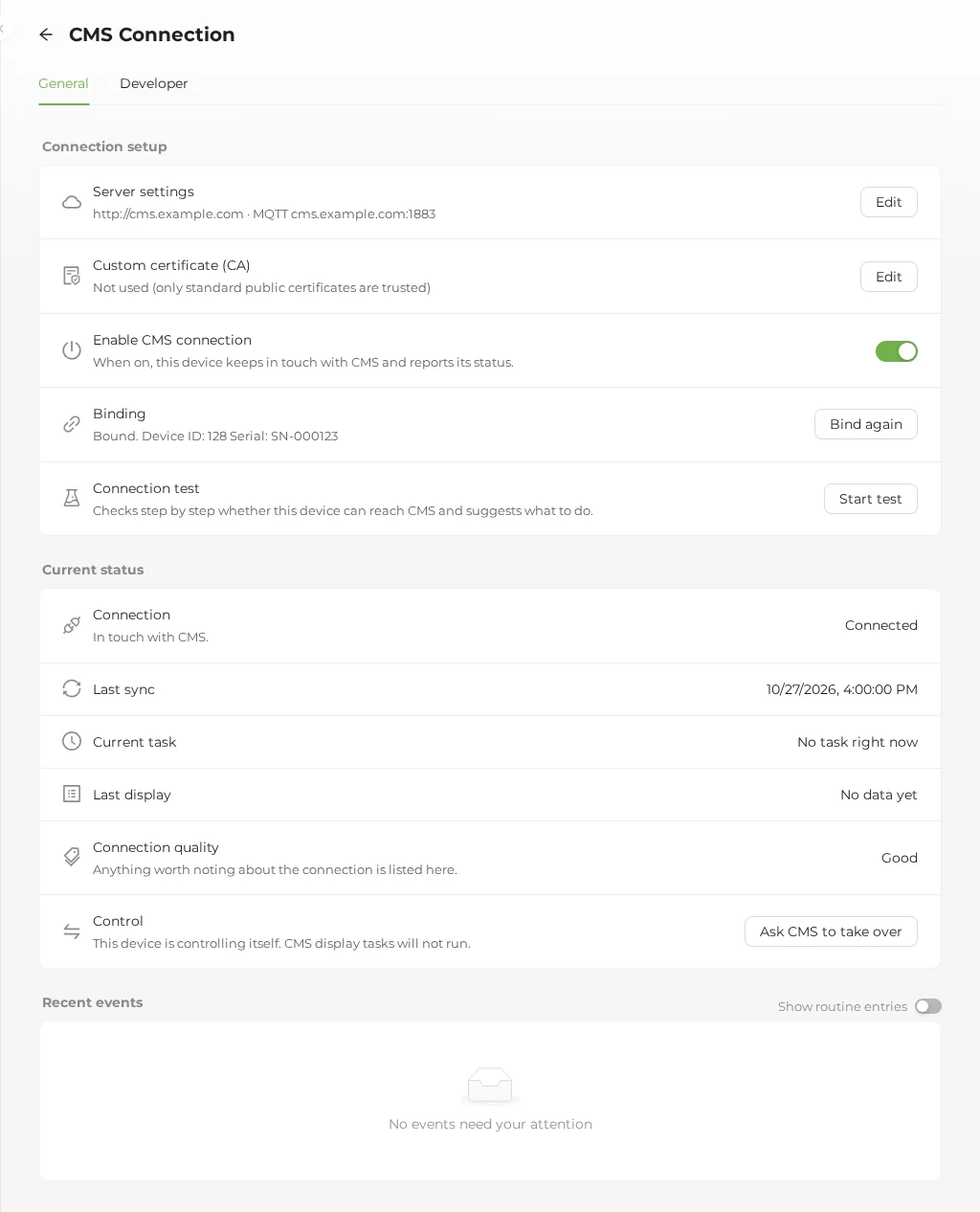
The page has two tabs, "General" and "Developer". For day-to-day use you only need "General".
Connection setup
| Item | Description |
|---|---|
| Server settings | Shows the current CMS address and MQTT host. Press "Edit" to change them; fields are listed below |
| Enable CMS connection | "When on, this device keeps in touch with CMS and reports its status." When off, the device does not contact CMS at all |
| Binding | When bound, shows the "Device ID" and "Serial". If not bound yet, press "Bind"; if bound, you can press "Bind again". Binding is not possible while "Enable CMS connection" is off |
| Custom certificate (CA) | Shows the CA certificate in use. Only needed when CMS uses a certificate issued by your hospital or company, see Custom certificate (CA) |
| Connection test | Press "Start test" to check step by step whether the device can reach CMS, see Connection test |
The "CMS server settings" dialog:
| Field | Description |
|---|---|
| CMS address | The CMS web address, starting with http:// or https://, for example https://cms.example.com. Required |
| MQTT host | The server used for instant notifications. Usually the same machine as CMS. Enter a host name (used with the port below), or the address given by CMS, for example wss://cms.example.com/mqtt or mqtts://cms.example.com:8883. When you enter an address, the port in it is used. Required |
| MQTT port | Usually 1883 without encryption and 8883 with https:// (encrypted connection). When the CMS address switches between http:// and https://, 1883/8883 switches with it. Required |
| MQTT username | Leave blank unless CMS requires one |
| MQTT password | If one is already set, the dialog shows "A password is set. Leave blank to keep it." Once saved on the device, the password is never shown again |
Using https://
With an https:// address the device verifies the CMS server certificate, and MQTT also uses an encrypted connection. If CMS uses a self-signed certificate on a hospital network, first upload that certificate's CA under "Custom certificate (CA)" on this page; otherwise the "Encrypted connection (TLS)" step of the connection test fails.
Custom certificate (CA)
If CMS uses a certificate issued by your hospital or company (https://), upload the CA certificate that issued it so the device trusts this CMS. A CMS with a standard public certificate does not need this, and the row shows "Not used (only standard public certificates are trusted)".
Press "Edit" on the "Custom certificate (CA)" row to open the "Custom certificate (CA)" dialog, then press "Upload CA certificate" and choose a .pem or .crt file. After a successful upload it shows "Certificate replaced".
| Item | Description |
|---|---|
| What is shown | The certificate name, expiry date and source, for example "{name}, expires {date} (uploaded here)" |
| Source | "uploaded here": uploaded on this page. "factory setting": set at installation. "set by support": set by a technician |
| Expiring soon | Within 30 days of expiry it shows "expires in {days} days"; after that it shows "expired, cannot connect to CMS" |
| Remove uploaded certificate | Press "Remove uploaded certificate" and confirm to go back to the factory certificate setting. It shows "Back to the factory setting" |
These files are rejected, with a reason:
| File | Message in short |
|---|---|
| Server certificate (not a CA) | "This is a server certificate, not a CA certificate". Ask the CMS administrator for the CA that issued it |
| Contains a private key | Rejected for security. Only the CA certificate is needed, no private key |
| Expired CA | An expired CA cannot be used to connect. Obtain a new CA |
| Not a certificate, incomplete, too large | The file must be a text (PEM) certificate, up to 64 KB |
After changing it
After replacing or removing the certificate, use the connection test to confirm the device can reach CMS. A factory reset removes an uploaded certificate. It cannot be changed while CMS is in control; return to local control first.
Current status
| Item | Description |
|---|---|
| Connection | "Connected": in touch with CMS. "Connecting": trying to connect. "Not connected yet": has never connected successfully; run the connection test first. "Waiting to connect": connected before but cannot reach CMS right now; the device retries automatically and the screen is not affected. "Off": "Enable CMS connection" is turned off, so the device does not contact CMS. "Checking": checking the connection |
| Last sync | When the device last fetched the latest task from CMS |
| Current task | How far the image from CMS has got, for example "Downloading image" or "Updating screen". Shows "No task right now" when there is none |
| Last display | Whether the most recent CMS image was shown successfully |
| Connection quality | Lists anything worth noting about the connection (see the table below); otherwise shows "Good" |
| Control | Whether the device is in local or CMS control, and since when. In local control this row has the "Ask CMS to take over" button |
Items that "Connection quality" may list:
| Item | What it means |
|---|---|
| "Weak Wi-Fi signal", "Very weak Wi-Fi signal" | The Wi-Fi signal at the device is not strong enough; the access point may need to be moved |
| "Some network packet loss", "Severe network packet loss" | Data is often lost on the network |
| "Wi-Fi access point keeps switching", "Wi-Fi access point refused the connection" | The device keeps switching between access points, or an access point will not let it connect |
| "Local network gateway unreachable", "Address lookup failed", "Network address settings problem" | A problem with the site network itself |
| "CMS server unreachable", "CMS often times out", "CMS returned errors" | The network works, but CMS cannot be reached or answers abnormally |
| "Instant-notification connection keeps dropping", "Instant-notification connection unstable" | The connection that receives instant notifications from CMS (MQTT) is unstable |
| "Device clock differs from CMS" | The device's time is too far from the time on CMS |
| "Wi-Fi connection service unstable", "Network recovery was run automatically", "Device restarted unexpectedly", "App has not reported in" | Conditions the device detected itself, for maintenance staff |
Items not in this table are shown as their English code.
Recent events
Lists events that need attention, labelled "Notice" or "Action needed". Turn on "Show routine entries" to include "Routine" entries too. Events are never shown in red, so on-site staff do not think the device is broken.
Developer tab
For maintenance staff troubleshooting: the full connection status, all events, "Last connection test" (expand it to see the original messages from the CMS component), and "Force back to local control". Regular users do not need this tab.
Connection test
After you press "Start test", six steps are checked in turn. This takes a few tens of seconds. When everything passes, the dialog shows "All checks passed. CMS can be reached."
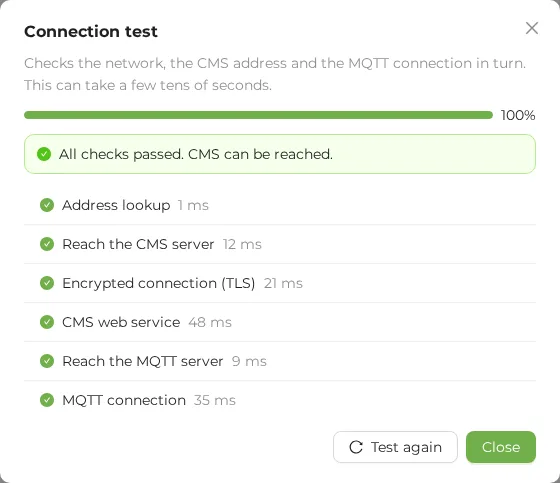
When a step fails, it is marked with a warning icon and a suggestion; later steps that depend on it are skipped. Work from the top down to the first failed step, fix it, then press "Test again".
| Step | What it checks | If it fails, check |
|---|---|---|
| Address lookup | Turns the CMS address name into an IP | Whether the device is connected to a network (see Network settings); whether DNS on the site network works; you can also set CMS by IP address |
| Reach the CMS server | Whether the CMS address and port can be reached | Whether the CMS server is on; whether the address and port are correct; whether a firewall in between allows the connection |
| Encrypted connection (TLS) | For an https:// address, whether an encrypted connection can be set up and the CMS certificate is trusted. Passes directly for http:// (no encryption) | A self-signed certificate on a hospital network needs its CA set up on the device first; the address must match the name on the certificate; whether the device clock is correct; whether this port is https |
| CMS web service | Whether CMS answers normally | Whether the address points to CMS itself (not another website); whether the CMS service is running; whether http:///https:// matches the CMS setup |
| Reach the MQTT server | Whether the MQTT host and port can be reached | Whether the MQTT server is running; whether the port (usually 1883 without encryption, 8883 with encryption) is open. Without MQTT, CMS still works, but new tasks arrive more slowly |
| MQTT connection | Whether the MQTT server accepts this device | Whether the MQTT username and password are correct; the MQTT server's access settings; with https://, MQTT must also use the encrypted port (usually 8883) |
If the whole test runs out of time, only one row appears, "Whole test": the network is very slow or a step got stuck. Check each item, starting with the network.
The suggestion for each step is shown in the language of the management interface and has the same content as the table above. The original messages from the CMS component can be viewed under "Last connection test" on the Developer tab.
Asking CMS to take over
Conditions: "Enable CMS connection" is on, the device is bound, and it is in local control. Otherwise the button is greyed out.
- On the "Control" row, press "Ask CMS to take over".
- Read the explanation and tick "I understand, send the request".
- Press "Send request".
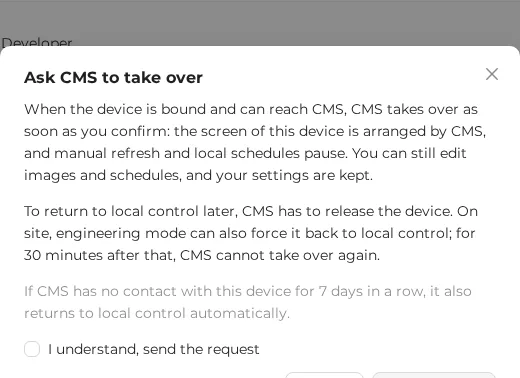
When the device is bound and can reach CMS, CMS takes over immediately after you send: "CMS now controls this device." appears and "Control" changes to "Controlled by CMS". The dialog also explains how to return to local control later.
| Result | Cause |
|---|---|
| "The request did not go through. Please check the connection first." | The device cannot reach CMS right now, is not bound, or is part of a cluster video wall. Run the connection test first |
Features paused while CMS is in control
While CMS is in control, a notice appears at the top of the affected pages. All settings are kept and work as usual once control returns to local.
| Page | While CMS is in control |
|---|---|
| Image Display | You can upload, edit and manage images, but manual refresh (clear screen, show image, etc.) is greyed out |
| Image Sets | Available as usual |
| Schedule | You can create and edit schedules, but they do not run |
| Light Schedule | You can create and edit light schedules, but they do not run |
| Tcon Scan Mode | View only |
| Sleep Settings | Hidden. The device does not go to sleep while CMS is in control |
| Battery | View only |
| Cluster | View only; changes made to this device from other devices through the cluster are refused |
| Network | You can set up Wi-Fi, but cannot switch to hotspot or concurrent mode, see Turning on the hotspot |
| Other settings pages (time settings, software update, etc.) | Available as usual |
Also:
- When you open the management interface, the home page goes straight to "CMS Connection".
- The presenter remote cannot change pages.
- The physical buttons keep only the functions listed in the next section.
Physical buttons
While CMS is in control, the physical buttons keep only the functions below. Paging, clearing the screen and showing the QR code do nothing, so that patients or passers-by cannot change the screen by accident. In local control the buttons work as described in Physical buttons and gestures.
| Action | Function |
|---|---|
| Hold both buttons for 2 seconds | Enter engineering mode; do it again in engineering mode to leave |
| Hold the Next button for 5 seconds | Show a diagnostics card without entering engineering mode |
| In engineering mode, press the Previous button 5 times within 4 seconds | Force local control |
| In engineering mode, press the Next button 5 times within 4 seconds | Turn the hotspot on for 30 minutes, see Turning on the hotspot |
| Hold any button for 40 seconds | Factory reset (same as in local control) |
The LED flashes quickly while you hold the Next button
From the 3rd second, the LED starts flashing quickly. This is the factory-reset countdown warning. Once the diagnostics card starts refreshing at 5 seconds, let go. Do not keep holding until 40 seconds.
Engineering mode
For on-site maintenance staff to check the device. In engineering mode:
- The panel shows the engineering mode info card (no QR code) with: control, CMS connection, device ID, display task, software version, network (IP and Wi-Fi name), system (CPU, temperature, memory), panel, and time. It is updated every 60 seconds when the content changes.
- The bottom of the card says "Hold ▲▼ 2 s to exit Press ▲ 5 times: force local Press ▼ 5 times: hotspot on/off". ▲ is the Previous button and ▼ is the Next button.
- The card text (also on the device info and diagnostics cards) follows the panel language (繁體中文, English, 日本語), and the CMS connection status is described in words, for example "Network OK, cannot reach CMS".
- The LED switches to the engineering-mode blinking, see Status LED.
- Images CMS sends during this time are held back and continue after you leave engineering mode.
When you leave engineering mode, the panel returns to what it showed before.
The text on the info cards is always in Traditional Chinese and does not follow the startup screen language.
Forcing local control
Use this when CMS has failed, its address is wrong, or on-site staff need to troubleshoot:
- Hold both buttons for 2 seconds to enter engineering mode (the panel shows the engineering mode info card).
- Within 4 seconds, press the Previous button 5 times.
- The device leaves engineering mode and returns to local control, and the panel shows the "Switched to standalone control" notice.
For the next 30 minutes CMS cannot take over again. To let CMS take over, press "Ask CMS to take over" on the CMS Connection page, or wait 30 minutes and take over from the CMS back office.
Different from rescue mode
Holding both buttons for 10 seconds starts network rescue mode, which is a different operation. Forcing local control only works after entering engineering mode first, so it does not happen by accident.
Turning on the hotspot
While CMS is in control, the device's hotspot is off by default. To connect a phone to the management interface on site:
- Hold both buttons for 2 seconds to enter engineering mode.
- Within 4 seconds, press the Next button 5 times.
- The hotspot turns on and turns off by itself after 30 minutes.
The engineering mode info card shows the hotspot state and the time it will turn off. When control returns to local, the network mode goes back to what it was before CMS took control.
While CMS is in control, the Network page cannot switch to hotspot or concurrent mode.
Updating the software from CMS
CMS can update this device's software remotely, without a visit:
- The update package is checked before it is installed.
- If the new version fails to start, the device automatically returns to the previous version.
- The result is reported to CMS. While the update runs, CMS shows the device as "updating".
For updating on site, see Software update (OTA).
Signs on the panel
Startup info card
When a device under CMS control starts up, it does not show the startup screen with QR codes. Instead it shows a startup information card, with the same content as the engineering mode card, and a line saying that the panel is controlled by CMS and will update shortly. It is replaced once the CMS image arrives.
The small triangle in the top-right corner
When CMS is in control and the device has not been in touch with CMS for 30 minutes in a row, a small triangle with an exclamation mark appears in the top-right corner of the CMS image on the panel. It is small and does not cover the main content; it only tells maintenance staff that the device is currently out of touch with CMS.
- It disappears automatically once the connection is back.
- It is drawn only on CMS images, never on the startup screen or on images shown in local control.
- After a restart, the 30 minutes start again.
If you see the triangle, run the connection test on the CMS Connection page.
CMS images keep failing to refresh
When CMS images keep failing to reach the panel, the device first restarts its panel service by itself. If it still fails, it clears the panel and shows a discreet error screen. The next CMS image that refreshes successfully replaces it.
Status LED
Once "Enable CMS connection" is on, the LED in standby shows the CMS connection status (in both local and CMS control). While refreshing, starting up or sleeping, the usual LED patterns apply, see Status LED.
Full-colour LED (13.3-inch white models):
| Status | LED | Description |
|---|---|---|
| Connected | Solid green | In touch with CMS; same as normal standby |
| Starting | White blinking (about every 1 second) | The CMS component has just started |
| Connecting | Slow blue blinking (about every 1.6 seconds) | Connecting to CMS |
| Poor connection | Solid amber | Connected, but something about the connection is worth noting |
| Cannot reach CMS | Slow yellow blinking (about every 2 seconds) | Problem with the network or CMS; run the connection test |
| Engineering mode | Fast blue blinking (about every 0.5 seconds) | In engineering mode |
| Updating | Amber blinking (about every 0.7 seconds) | Updating software |
| CMS component not running | Fast yellow blinking | The CMS component itself has been stopped for more than 60 seconds; the LED is never red. It returns to normal when the component comes back |
Dual single-colour LEDs (27.6-inch, 32-inch and similar models) have no colour, so the blinking speed tells the states apart:
| Status | LED | Description |
|---|---|---|
| Connected | Solid | In touch with CMS |
| Starting | Blinking (about every 0.6 seconds) | The CMS component has just started |
| Connecting | Slow blinking (about every 1.6 seconds) | Connecting to CMS |
| Poor connection | Very slow blinking (about every 3 seconds) | Connected, but something about the connection is worth noting |
| Cannot reach CMS | Blinking (about every 0.9 seconds) | Problem with the network or CMS; run the connection test |
| Engineering mode | Fast blinking (about every 0.5 seconds) | In engineering mode |
| Updating | Blinking (about every 0.7 seconds) | Updating software |
| CMS component not running | Short blinks | The CMS component itself has been stopped for more than 60 seconds. It returns to normal when the component comes back |
The factory-reset countdown LED takes priority over all of the above.
Connection status shows at most a yellow warning, never red; red is used only for the factory-reset countdown and failed refreshes.
FAQ
I entered the CMS address. Why hasn't the screen changed?
The default is local control, so images sent by CMS are not shown. Check that "Connection" shows "Connected" and "Binding" shows the device as bound, then press "Ask CMS to take over" or have CMS take over.
"Ask CMS to take over" is greyed out
All of these must be true: "Enable CMS connection" is on, the device is bound, and it is in local control. If it is not bound, press "Bind"; if binding fails, run the connection test first.
Are schedule settings erased while CMS is in control?
No. Schedules and light schedules are only paused and can still be edited. After control returns to local, they run as usual from the next scheduled time.
CMS is down and the device keeps showing an old image. What can I do?
The device keeps showing the last image (a cholesteric LCD keeps its image without power). If you need to change the screen on site, force local control in engineering mode and then use the management interface. If CMS cannot reach the device for 7 days in a row, the device also returns to local control automatically.
If the network drops briefly, does the panel show an error screen?
No. The panel never shows an error or offline screen. Only after 30 minutes in a row without contact with CMS does the small triangle appear in the top-right corner of the CMS image.
Are CMS settings kept after a factory reset?
A factory reset clears the binding, any CMS address changed in the management interface, and control, so the device goes back to "local control, not bound". The CMS address set during installation is kept, and after the reset the device binds again with it automatically. The same goes for the MQTT username and password: values set at installation (production) are kept, while values changed in the management interface return to the factory values after a reset. See Factory reset.
Where do I set which CMS this device connects to?
On site, use "Server settings" on this page. Devices that were shipped with a CMS address need no further setup.
Related: CMS / standalone mode switching, Network settings, Physical buttons and gestures, Status LED, Cluster