
3. Put an image on the device
First upload images to the device, then pick one to display.
Upload images
- In the menu on the left, tap Image Display (this is the page you see when you open the management interface).
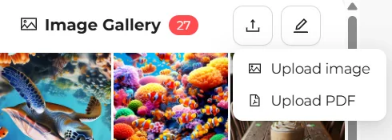
- Tap the Upload icon (up arrow) at the top right of the image gallery → Upload image.
- Choose photos on your phone. You can select many at once.
- Wait until "All images uploaded successfully" appears.
What images work best?
- JPG or PNG is recommended.
- Images made at the device's size look best, for example 1920 × 1080 (for each model's size, see Recommended image sizes).
- High contrast, large text and bold lines are clearest on the device.
Display it on the device
- Tap the image you want in the image gallery. The preview box shows how it will look on the device.
- Tap the image in the preview box. The "Confirm Display" window appears.
- Tap Display Now.
- Wait for the device to finish changing the image (about 6–20 seconds depending on the model), and you're done.

Seeing "Send failed, device may be busy"?
The device can change only one image at a time. Wait for the current image to finish, then try again.
Next: 4. Let the device change images automatically
Learn more: Image gallery and displaying images, How images are processed, PDF collage