
5. Save power and shut down
Use "sleep" to save power day to day. "Shut down" only when you won't use the device for a long time or need to move it.
Sleep: use this to save power day to day
- In the menu on the left, tap Settings → Sleep Settings.
- Turn on Enable Sleep and choose 5 minutes for the idle time (default).
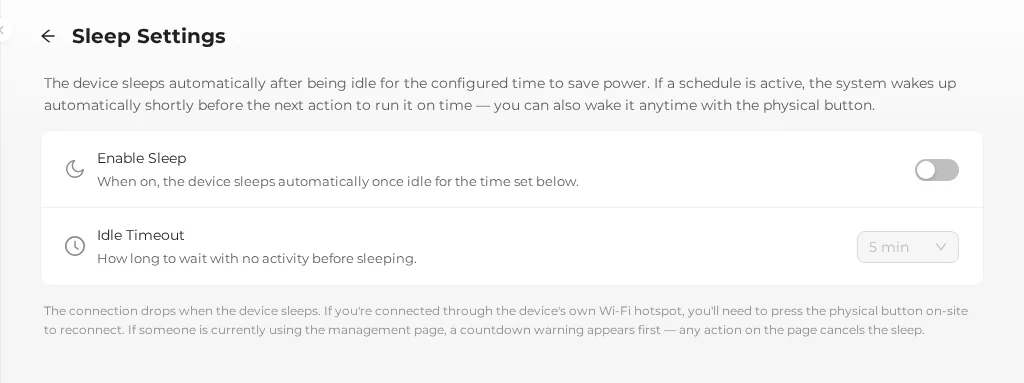
While asleep, the device behaves like this:
| Item | While asleep |
|---|---|
| Screen | Keeps showing the image; it looks the same as when awake |
| Scheduled image changes | Wakes up by itself to change the image on time |
| Wi-Fi | Off; phones can't connect |
| Status LED | Off |
To manage the device from your phone, first press a physical button once to wake it up, wait a few seconds, then connect.
Why won't it go to sleep?
While someone has the management interface open, the device has to be idle longer before it sleeps. When you're done, close the browser tab.
Shut down: when not in use for a long time or when moving it
- In the menu on the left, tap Settings → Power Control.
- In the "Shutdown Device" row, tap Shut Down and confirm.
- The device clears the screen to white first, then shuts down.
After shutdown, someone must be on site to turn it on
After shutdown, your phone can't turn the device back on, and schedules don't run. To save power day to day, just use sleep.
Models with a battery
- The battery level is shown at the top right of the management interface. When it turns red at 20% or below, charge it as soon as possible.
- If a light is installed and it's on when the device goes to sleep, the light stays on.
Next: 6. What to do when something goes wrong
Learn more: Sleep and wake up, Power control and storage, Battery